Every machine that talks on a network needs an address, and on the machines you administer that address is an IP address. Most of the time it arrives from DHCP, works, and you never think about it. The day it stops working, or the day two servers that should obviously be able to reach each other can’t, you need to know what the number actually means.
This guide covers what an IP address is made of, how the network and host halves are split, what CIDR notation is telling you, and the Linux commands that answer these questions on a real machine. If you’re new to the shell, Linux commands and directory structure covers the ground this assumes.
What an IP address is made of
An IPv4 address is 32 bits. That’s the whole story, and everything else follows from it.

Thirty-two bits is awkward to read, so the address gets written as four groups of 8 bits called octets, separated by dots.

Eight bits can count from 00000000 to 11111111, which is 0 to 255 in decimal. That’s why you never see 192.168.1.300. The 300 doesn’t fit in eight bits, and any tool worth using will reject it.

Four octets of 256 possible values gives 232 addresses, or 4,294,967,296. That sounded like plenty in 1981. It ran out, which is the reason IPv6 exists and the reason your home router hides every device behind a single public address.
The network half and the host half
An IP address answers two questions at once: which network you’re on, and which machine you are on that network. The split between those two halves is not fixed. It’s whatever the subnet mask says it is.
The subnet mask is also 32 bits. Every bit set to 1 marks a network bit, every 0 marks a host bit, and the 1s always come first. So 255.255.255.0 is twenty-four 1s followed by eight 0s, which means the first three octets identify the network and the last octet identifies the host.
Address:  192.168.1.42     11000000.10101000.00000001.00101010
Netmask:  255.255.255.0    11111111.11111111.11111111.00000000
                           |---------network---------|--host--|
Two addresses are on the same network when their network halves match. That single sentence is what most connectivity troubleshooting comes down to.
CIDR notation, and why the classes stopped mattering
Writing out 255.255.255.0 every time is tedious, so the mask usually gets written as the number of network bits after a slash. That’s CIDR notation, short for Classless Inter-Domain Routing.
192.168.1.42/24 says the same thing as an address of 192.168.1.42 with a mask of 255.255.255.0. Twenty-four network bits, eight host bits.
| Prefix | Subnet mask | Usable hosts | Typical use |
|---|---|---|---|
/8 |
255.0.0.0 | 16,777,214 | Whole private range 10.0.0.0/8 |
/16 |
255.255.0.0 | 65,534 | Large site, VPC |
/24 |
255.255.255.0 | 254 | The everyday office or home LAN |
/26 |
255.255.255.192 | 62 | Small subnet, split from a /24 |
/28 |
255.255.255.240 | 14 | A rack, a small DMZ |
/30 |
255.255.255.252 | 2 | Point to point link |
/32 |
255.255.255.255 | 1 | A single host, firewall rules |
Usable hosts is always two fewer than the total. The first address in any subnet names the network itself and the last one is the broadcast address, so neither can be handed to a machine. On a /24 that’s 256 addresses with 254 you can actually use.
The word “classless” in CIDR is a direct reference to what came before, so it’s worth knowing what it replaced.
The address classes, and why you still meet them
Before 1993 the split between network and host wasn’t chosen by a mask. It was baked into the address itself, decided by the leading bits of the first octet. Five classes were defined.
| Class | First octet | Network bits | Purpose |
|---|---|---|---|
| A | 1 to 126 | 8 | Very large networks |
| B | 128 to 191 | 16 | Medium networks |
| C | 192 to 223 | 24 | Small networks |
| D | 224 to 239 | n/a | Multicast |
| E | 240 to 255 | n/a | Reserved, experimental |

In a Class A address the leading bit is always 0, which is what caps the first octet at 127. That leaves seven bits for the network number, and since 0 and 127 are both spoken for, Class A ran from 1 to 126.

Class B starts its first octet with 10, which is what produces the 128 to 191 range, and gives sixteen network bits.

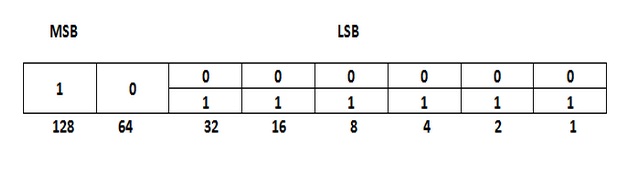
Class C starts with 110, giving 192 to 223 and twenty-four network bits.


The problem was waste. An organisation that needed 300 addresses was too big for a Class C and got handed a Class B with 65,534, most of which sat unused. CIDR fixed that by letting the mask land anywhere, so that same organisation gets a /23 and nothing is stranded.
Nothing routes by class any more. Classes survive in two places: certification exams still test them, and the old class boundaries explain why the private ranges are the odd shapes they are. Treat them as history that explains the present, not as a rule you apply.
Private address ranges
Three ranges are set aside by RFC 1918 for use inside your own network. They’re never routed on the public internet, so you can use them freely and everyone does.
| Range | CIDR | Addresses |
|---|---|---|
| 10.0.0.0 to 10.255.255.255 | 10.0.0.0/8 |
16,777,216 |
| 172.16.0.0 to 172.31.255.255 | 172.16.0.0/12 |
1,048,576 |
| 192.168.0.0 to 192.168.255.255 | 192.168.0.0/16 |
65,536 |
The 172.16 range is the one people get wrong. It runs to 172.31.255.255, not 172.16.255.255 and not 172.255.255.255. It’s a /12, which covers sixteen /16 blocks from 172.16 through 172.31.
There’s a fourth range worth recognising: 100.64.0.0/10, reserved for carrier-grade NAT. If your ISP hands you an address in there, you’re behind their NAT and inbound connections won’t reach you.
Addresses that mean something special
| Address | What it means |
|---|---|
127.0.0.0/8 |
Loopback. 127.0.0.1 is this machine, always. |
0.0.0.0 |
Unspecified. As a route it means “everywhere”, as a bind address it means “all interfaces”. |
169.254.0.0/16 |
Link-local. A machine gives itself one of these when DHCP fails, which is a useful symptom. |
| First address in a subnet | The network address. Names the subnet, can’t be assigned. |
| Last address in a subnet | The broadcast address. Reaches every host on the subnet. |
On a 192.168.1.0/24 network that works out as follows.
192.168.1.0      network address, not assignable
192.168.1.1      first usable host, usually the gateway by convention
192.168.1.254    last usable host
192.168.1.255    broadcast address, not assignable
Seeing a 169.254 address on an interface is worth reacting to. It means the machine asked for a lease and nothing answered, so the problem is DHCP or the link itself, not the address.
Finding your own address
The short form is the one to reach for first.
ip -br addr
lo               UNKNOWN        127.0.0.1/8 ::1/128
enp0s3           UP             192.168.1.42/24 fe80::a00:27ff:fe4e:66a1/64
That’s the address and the prefix in one line per interface, which is usually all you need. For the full picture on one interface:
ip addr show enp0s3
2: enp0s3: <BROADCAST,MULTICAST,UP,LOWER_UP> mtu 1500 qdisc fq_codel state UP group default qlen 1000
    link/ether 08:00:27:4e:66:a1 brd ff:ff:ff:ff:ff:ff
    inet 192.168.1.42/24 brd 192.168.1.255 scope global dynamic noprefixroute enp0s3
       valid_lft 84532sec preferred_lft 84532sec
    inet6 fe80::a00:27ff:fe4e:66a1/64 scope link noprefixroute
       valid_lft forever preferred_lft forever
The dynamic keyword and the valid_lft countdown tell you this came from DHCP rather than being configured statically. A static address has no lease timer.
ifconfig still turns up in older guides. It’s deprecated, it isn’t installed by default on current distributions, and it doesn’t show everything the kernel knows. Use ip.
To find the gateway and which interface traffic actually leaves by:
ip route show default
default via 192.168.1.1 dev enp0s3 proto dhcp src 192.168.1.42 metric 100

ip route get 8.8.8.8
8.8.8.8 via 192.168.1.1 dev enp0s3 src 192.168.1.42 uid 1000
That second command is the honest answer to “how would this machine reach that address”, straight from the routing table, which beats guessing from a list of interfaces.
Letting ipcalc do the binary
You can work out a subnet by hand and you should do it once so it isn’t magic. After that, use a tool. Both families package something called ipcalc, and here’s the catch nobody mentions: they are two different programs that happen to share a name.
sudo apt install ipcalc        # Debian, Ubuntu
sudo dnf install ipcalc        # RHEL, Rocky, Alma, Oracle Linux, Fedora
On Debian and Ubuntu you get the original, which prints binary next to the decimal:
ipcalc 192.168.1.42/24
Address:   192.168.1.42         11000000.10101000.00000001. 00101010
Netmask:   255.255.255.0 = 24   11111111.11111111.11111111. 00000000
Wildcard:  0.0.0.255            00000000.00000000.00000000. 11111111
=>
Network:   192.168.1.0/24       11000000.10101000.00000001. 00000000
HostMin:   192.168.1.1          11000000.10101000.00000001. 00000001
HostMax:   192.168.1.254        11000000.10101000.00000001. 11111110
Broadcast: 192.168.1.255        11000000.10101000.00000001. 11111111
Hosts/Net: 254                   Class C, Private Internet
Look at where the gap falls in that binary column. It sits exactly on the mask boundary, so the split between network bits and host bits is visible without counting anything. That’s the whole idea of a subnet mask on one screen.
The RHEL family ships a Red Hat rewrite under the same name. Same job, no binary, different field order:
ipcalc 192.168.1.42/24
Address:	192.168.1.42
Network:	192.168.1.0/24
Netmask:	255.255.255.0 = 24
Broadcast:	192.168.1.255

Address space:	Private Use
HostMin:	192.168.1.1
HostMax:	192.168.1.254
Hosts/Net:	254
Worth knowing before you follow a guide on a Rocky or Oracle Linux box and wonder why your output looks nothing like the example. Neither is wrong, they’re just different tools. The -b flag that hides binary only exists on the Debian one, because the Red Hat version never prints binary to begin with.
Are these two machines on the same subnet?
This is the question behind a large share of “the network is broken” tickets. Two hosts on the same subnet talk directly. Hosts on different subnets need a router, and if the routing or the gateway is wrong they simply never meet.
Take 192.168.1.42/24 and 192.168.1.200/24. Mask off the host bits and both give a network of 192.168.1.0, so they’re on the same subnet and will reach each other directly.
Now take 192.168.1.42/24 and 192.168.2.15/24. The networks are 192.168.1.0 and 192.168.2.0, which are different, so this traffic has to cross a router no matter how close together the machines are sitting.
The trap is a mismatched mask on two machines that look fine individually:
Host A: 192.168.1.42/24   -> network 192.168.1.0, range .1 to .254
Host B: 192.168.1.200/26  -> network 192.168.1.192, range .193 to .254
Host A believes B is a neighbour and ARPs for it directly. Host B has a narrower view of the subnet and may send its replies to the gateway instead. You get traffic that works in one direction, or works intermittently, which is far more confusing than a clean failure. When something behaves this way, compare the prefixes before anything else.
Splitting a network into smaller ones
Subnetting means borrowing bits from the host half and giving them to the network half. Each bit you borrow doubles the number of subnets and halves the hosts in each.
Say you have 192.168.1.0/24 and you want four separate networks. Four is 22, so borrow two bits and the prefix moves from /24 to /26.
| Subnet | Network | Usable range | Broadcast |
|---|---|---|---|
| 1 | 192.168.1.0/26 | .1 to .62 | 192.168.1.63 |
| 2 | 192.168.1.64/26 | .65 to .126 | 192.168.1.127 |
| 3 | 192.168.1.128/26 | .129 to .190 | 192.168.1.191 |
| 4 | 192.168.1.192/26 | .193 to .254 | 192.168.1.255 |
Each block is 64 addresses wide, 62 of them usable. That 64 is the number to hold on to, because it’s the step between one network address and the next, and it comes straight from the mask: 256 minus 192 is 64.
Check any of them rather than trusting the arithmetic:
ipcalc -b 192.168.1.128/26
Address:   192.168.1.128
Netmask:   255.255.255.192 = 26
Wildcard:  0.0.0.63
=>
Network:   192.168.1.128/26
HostMin:   192.168.1.129
HostMax:   192.168.1.190
Broadcast: 192.168.1.191
Hosts/Net: 62                    Class C, Private Internet
The subnets don’t have to be equal sizes. Using different prefixes inside the same range is called VLSM, and it’s how you give a point to point link a /30 while the user network next door keeps a /24.
IPv6, the short version
IPv6 uses 128 bits instead of 32. Written out, that’s eight groups of four hexadecimal digits separated by colons, where each group holds 16 bits.

2001:0db8:0000:0000:0000:0000:0000:0001

8 groups x 16 bits = 128 bits
Nobody types them that way. Leading zeros in a group can be dropped, and one run of all-zero groups can be collapsed to a double colon, so that address is normally written like this:
2001:db8::1The double colon can only appear once in an address. If it appeared twice there would be no way to work out how many zero groups belong in each gap.
A few things carry over from IPv4 and a few don’t. The prefix still works the same way, and /64 is the standard size for a single network, which is not a suggestion so much as an assumption most autoconfiguration makes. There’s no broadcast address, multicast does that job instead. There’s usually no NAT, because the address space is large enough that every device can have a real address.
Addresses starting fe80:: are link-local. Every IPv6 interface generates one automatically and it only works on that one link, which is why you saw fe80::a00:27ff:fe4e:66a1/64 in the output above without configuring anything.
ip -6 addr show enp0s3
2: enp0s3: <BROADCAST,MULTICAST,UP,LOWER_UP> mtu 1500 state UP qlen 1000
    inet6 2001:db8:1234:5678:a00:27ff:fe4e:66a1/64 scope global dynamic mngtmpaddr
       valid_lft 2591892sec preferred_lft 604692sec
    inet6 fe80::a00:27ff:fe4e:66a1/64 scope link noprefixroute
       valid_lft forever preferred_lft forever
The global address there came from SLAAC, where the router advertises the /64 prefix and the host builds its own address inside it. No DHCP server has to be involved at all, which catches people out when they go looking for a lease that doesn’t exist.
2001:db8:: is the range reserved for documentation, which is why it shows up in examples here and everywhere else. Don’t use it on a real network.
Setting an address on a modern system
An address added with ip addr add is gone at the next reboot, which makes it perfect for testing and useless for anything permanent.
sudo ip addr add 192.168.1.50/24 dev enp0s3
sudo ip addr del 192.168.1.50/24 dev enp0s3
For something that survives a restart, use whatever your distribution actually manages the network with. On RHEL, Rocky, AlmaLinux and Fedora that’s NetworkManager:
nmcli con show
sudo nmcli con mod "System enp0s3" ipv4.method manual \
  ipv4.addresses 192.168.1.50/24 \
  ipv4.gateway 192.168.1.1 \
  ipv4.dns "1.1.1.1 9.9.9.9"
sudo nmcli con up "System enp0s3"
On Ubuntu Server it’s netplan, which reads YAML from /etc/netplan/:
network:
  version: 2
  ethernets:
    enp0s3:
      addresses: [192.168.1.50/24]
      routes:
        - to: default
          via: 192.168.1.1
      nameservers:
        addresses: [1.1.1.1, 9.9.9.9]
sudo netplan trynetplan try applies the change and rolls it back automatically if you don’t confirm within 120 seconds. On a machine you reach over SSH that is the difference between a typo you shrug at and a trip to the data centre. Indentation in that file is YAML, so it has to be spaces, never tabs.
The older /etc/sysconfig/network-scripts/ifcfg-* files that appear in a lot of guides are gone from RHEL 9 and its rebuilds. If you find advice telling you to edit them, it predates the systems you’re running.
Troubleshooting
| What you see | What it usually means |
|---|---|
| Address starts 169.254 | DHCP got no answer. Check the link and the DHCP server, not the address. |
| Two hosts on one switch can’t talk | Compare the prefixes. A mismatched mask does exactly this. |
| Local traffic fine, internet dead | Gateway missing or wrong. Check ip route show default. |
| Ping by IP works, by name doesn’t | Not an addressing problem. That’s DNS. |
ifconfig: command not found |
Expected on current distributions. Use ip. |
| Address vanished after reboot | It was added with ip addr add. Use nmcli or netplan to persist it. |
| Cannot assign requested address | You used the network or broadcast address. Neither can be assigned. |
Where to go next
Addressing is the layer everything else sits on, so the next useful step is usually seeing what’s actually running on those addresses. The ss command shows which ports are listening and which connections are open, and nmap does the same from the outside looking in.
Once names matter more than numbers, running your own BIND DNS server is the logical follow-on, and configuring SSH is what you’ll be doing across those addresses every day.
If you take one thing from this, make it the habit of reading the prefix. Not just the address, the prefix. Most addressing problems are sitting in plain sight in that number, and the people who fix them quickly are the ones who look at it first.